Export to Excel: have Data Apps finally solved it?

Can I export this to Excel?
How many times have you been asked this?
Stakeholders love their Export to Excels - and we Tableau developers don't like adding them.
Part of the reason for that - aside from the obvious - is there's no easy way to build this in Tableau.
The native export exposes all the worksheets on your dashboard and the best solutions are workarounds from the community.
But maybe Data Apps has just fixed this?
The problem with native export
Download, Crosstab, pick a sheet. Simple, until you look at the list.
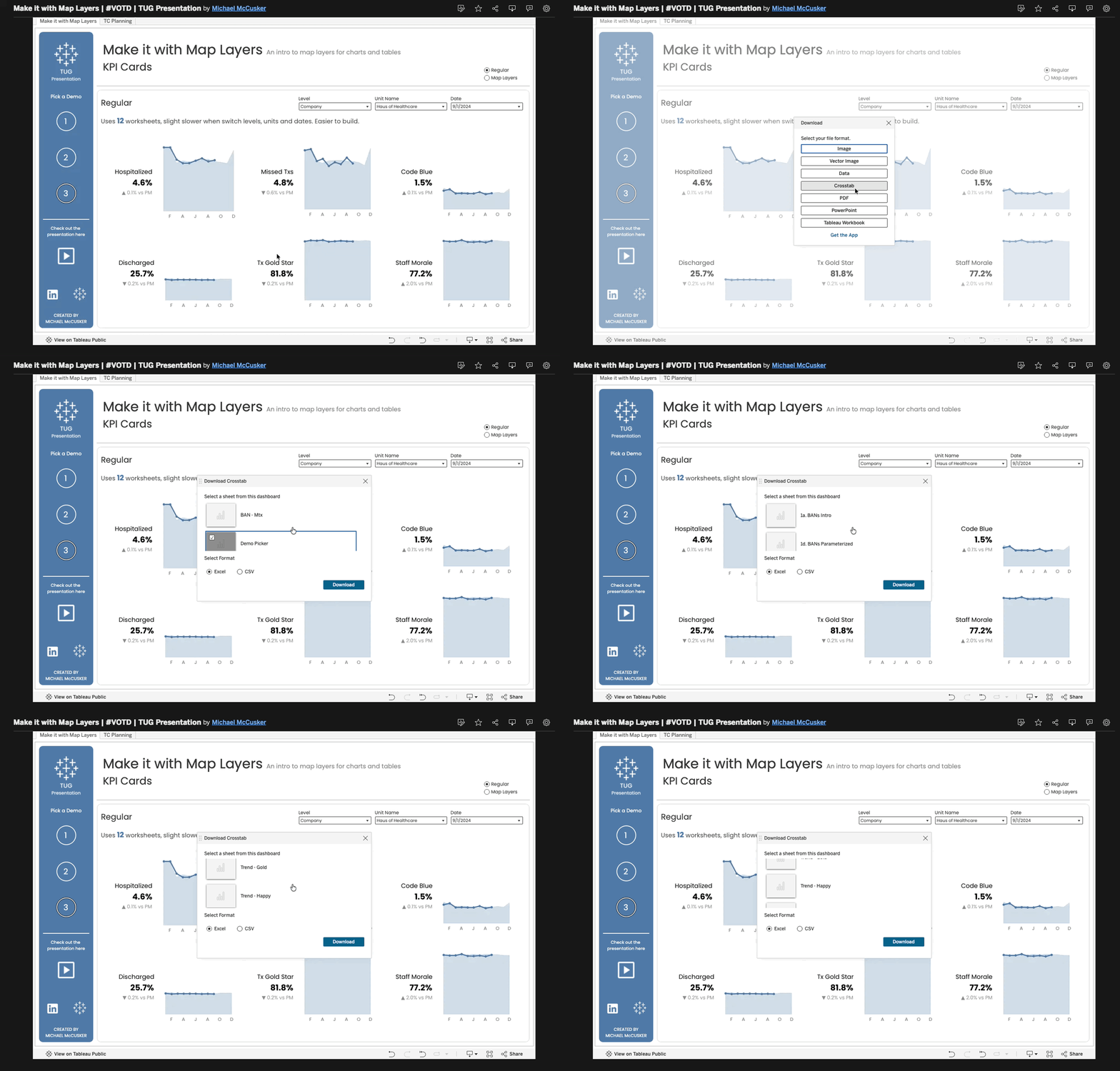
Every sheet in the workbook is there. Including the helper sheets, the hidden ones, the KPI text sheets and the sheet called Sheet 14 (2) that you forgot to rename. Half of them make no sense on their own, and the viewer has to guess which one they want.
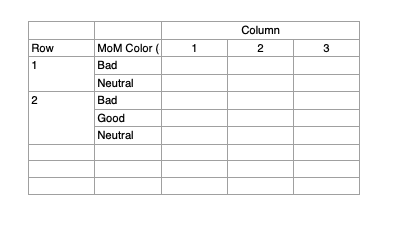
The export of worksheet not meant to be seen by the end user.
You get what's on the sheet, not what they need. One table per download, the headers Tableau gives you, and no context about where it came from or what was filtered.
The best workaround is 12 years old
Back in 2014, Andy Kriebel wrote The Greatest Tableau Tip EVER: Exporting Made Simple! on VizWiz.
Add .csv to the end of a view's URL and Tableau sends the data back as a file. Float an Excel icon on your dashboard, link it to that URL, and you have an export button.
Many of us are still using this 12 years on.
Data Apps might have just solved it
A Data App is a web app inside your workbook.
Using Data Apps we can create an export button that lets us design exactly what the export looks like and the user only has to interact with minimally:
-
Tableau Public - one click
-
Tableau Cloud - Right Click > Save Link As (Download Linked File As in Safari)
For example, in this dashboard, a Refresh Monitor dashboard for Cloud admins, Export to Excel builds a real .xlsx with three separate worksheets:
-
The "About" Tab: No data, just info about the export. What is included, what filters are applied, what the fields mean and an overview of the other tabs.
-
The "Biggest compute cost" tab: the Top N exactly as ranked on screen. Responds to the filters applied. Not applicable here, but also respects Row-Level Security (RLS).
-
The "Needs attention" tab: every failing and stale extract, owner email and full error text included. We even pull in some of the color formatting too.
We picked and designed exactly what goes into the export, and what doesn't.
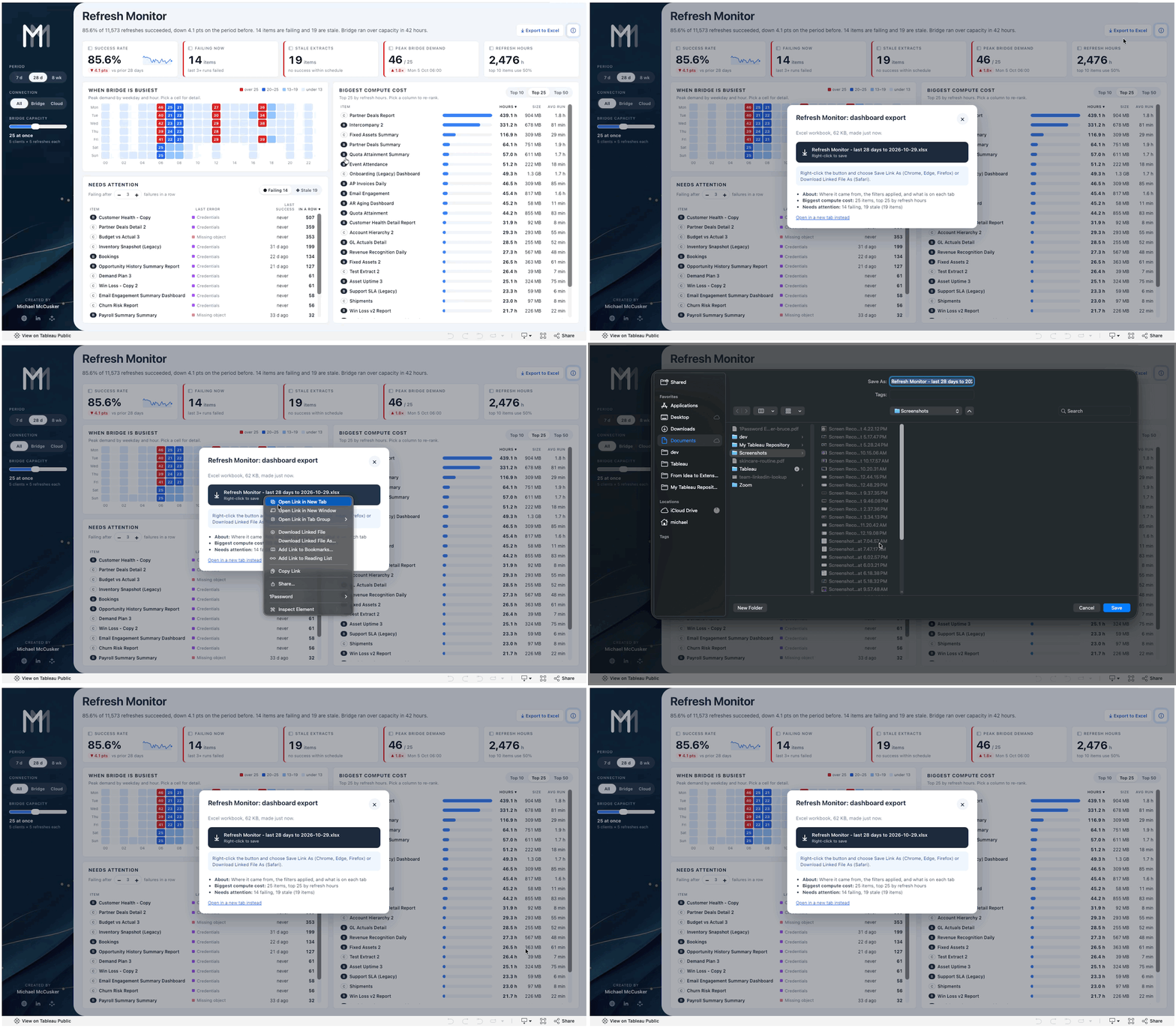
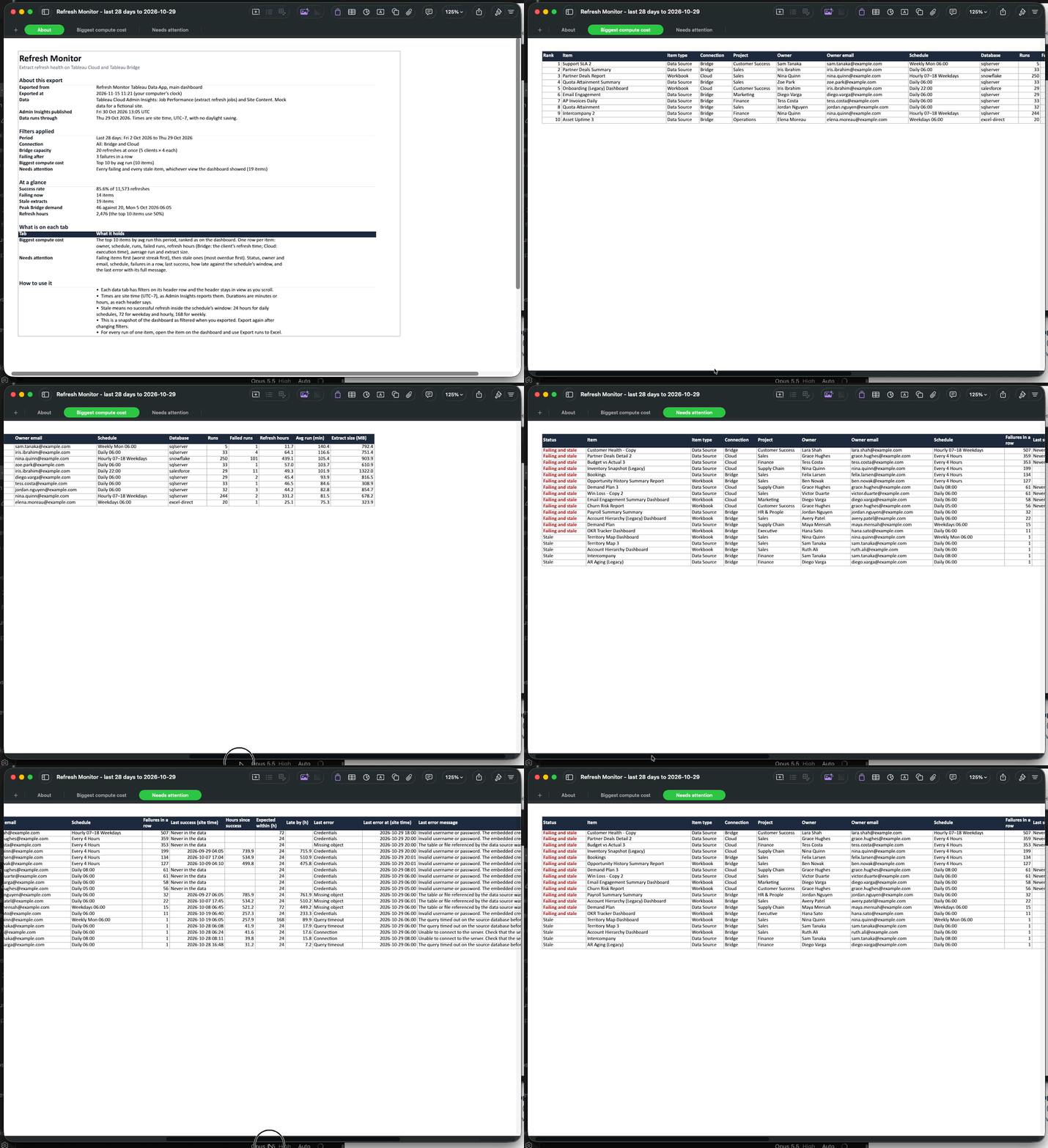
Try it yourself: Refresh Monitor is on Tableau Public. Click Export to Excel at the top, or open any item and export its runs.
There's even another export to excel in one of the slide-overs that exports an entirely different set of data.
The tech bit
The sandbox gets in the way. A Data App runs in a locked-down frame, and the browser blocks any download the app starts, in Chrome and Safari alike.
So the app builds the file itself. An .xlsx is just a zip of XML files. A small writer in the app (about 200 lines, no library) produces the workbook: styled header rows, column widths, frozen headers, filters on every column, real dates and print settings.
Then it hands the file over. The app shows a pop-up with one button. On Tableau Cloud, right-click it and choose Save link as (Download Linked File As in Safari). On the Tableau Public copy, a plain click does it.
That right-click is the trade-off. In exchange, you decide everything: which sheets, which columns, the headers, the order, the formatting and the explanation that travels with the data.
And it's not much harder than native. Native is Download, Crosstab, find the right sheet, pick Excel, Download. This is Export to Excel, right-click, Save.
I've tested it on Tableau Cloud in Safari and Chrome. To get it down to one click, I tried eight other routes: different kinds of link, opening the file in a new tab, Chrome's own save dialog and copying the tables to the clipboard. Every one was blocked. The right-click works because the browser starts that download, not the app.
If you figure out a single left-click on Tableau Cloud - do let me know.
Add it to your skills file
If you build with Claude Code or another AI coding tool and keep a skills file, here's the pattern to paste in. It's the one I use.
## Excel export from a Tableau Data App

Use when a Data App needs an "Export to Excel" button.

**Why not a normal download:** Data Apps run in a sandboxed frame without
allow-downloads, so Chrome and Safari block any download the app starts.
Build the file in the browser and let the viewer save it.

**Hand-over**
1. Build the .xlsx as bytes in the browser.
2. Base64 it into a data: URL
   (data:application/vnd.openxmlformats-officedocument.spreadsheetml.sheet;base64,...).
3. Show it in a dialog as <a href="data:..." download="Report.xlsx">,
   styled as one big button.
4. Label it "Right-click, then Save link as" (Safari's menu says
   Download Linked File As). A plain click saves nothing on Tableau Cloud.
5. Don't look for a one-click route. Blob URLs, window.open, new tabs,
   showSaveFilePicker and the clipboard are all blocked there.
   Right-click works because the browser starts the download.
6. A static web copy (e.g. framed on Tableau Public) isn't in that
   sandbox, so there "Click to download" works.

**Writing the .xlsx (no library)**
- An .xlsx is a zip of XML parts: [Content_Types].xml, _rels/.rels,
  xl/workbook.xml, xl/_rels/workbook.xml.rels, xl/styles.xml and one
  xl/worksheets/sheetN.xml per tab. Store them uncompressed (CRC-32 is
  still required).
- Use inline strings (t="inlineStr"), so no shared strings table.
- Escape XML, and strip control characters other than tab and line breaks.
- Dates are numbers: days since 1899-12-30 (UTC milliseconds / 86400000
  + 25569), with a date number format.
- Styles live in styles.xml (fonts, fills, borders, number formats,
  cellXfs). A cell points at one with s="n".
- Freeze the header with a pane in sheetView. Add autoFilter plus a
  _xlnm._FilterDatabase defined name. Set column widths with cols.
- Sheet names: 31 characters at most, none of []:*?/\ and unique.
- Keep building apart from delivering, so tests can write real files.

**What goes in the workbook**
- First tab "About": title, where it came from, when, every filter
  applied, what each tab holds, how to use it.
- Data tabs: dark header row, frozen and filtered; units in the headers;
  real dates and numbers; full text, not what fitted on screen; the same
  sort the dashboard showed.
- One workbook per job (summary vs detail). Name files by scope and date.

**Test**
- Open the zip and parse every XML part.
- Open it in Excel and in LibreOffice (headless soffice can write each
  sheet to CSV).
- Hide the export button when tableau.extensions.environment.isExporting.
What I'd tell you
-
Start with the About sheet. Where it came from, the filters, what each tab holds. It answers the email you'd otherwise get a week later.
-
Export what people need, not what's on screen. Full error messages, email addresses, units in the headers.
-
One workbook per job. A summary export and a detail export are different files.
-
Data Apps are still a beta. Tableau Cloud only for now, and viewers need API Access on the workbook.
Export to Excel. Solved? For Data Apps, I think it might be.
Resources
-
Refresh Monitor - Tableau Public, with both Excel exports to try
-
The Greatest Tableau Tip EVER: Exporting Made Simple! - Andy Kriebel, VizWiz
-
Tableau Data Apps are here - what a Data App is and how I build them